

Looking for used car dealer software? 10 things to consider
Ten things to ask when choosing used car dealer software, from registration lookups and portal feeds to the stock book, working offline and your local area.
In this post
Choosing used car dealer software is about more than finding a place to store your stock list. The right system should make everyday jobs easier, from entering a new car to preparing its paperwork for handover.
Use this checklist during a demo. Ask the supplier to show each step using a vehicle from your own stock, not just a polished presentation.
1. Does one registration start the workflow?
Ask what happens after you enter a vehicle registration. Can the system use it to fill in the make, model, year, trim and engine code where available? Does that information then carry into the stock record, advert, website listing and paperwork?
Watch what needs correcting by hand. Check how the system handles missing or incorrect lookup data, and ask whether lookups are included in the monthly price or charged separately.
The aim is simple: enter the details once, review them, then use that same record for the next tasks.
2. Do portal feeds update from your stock record?
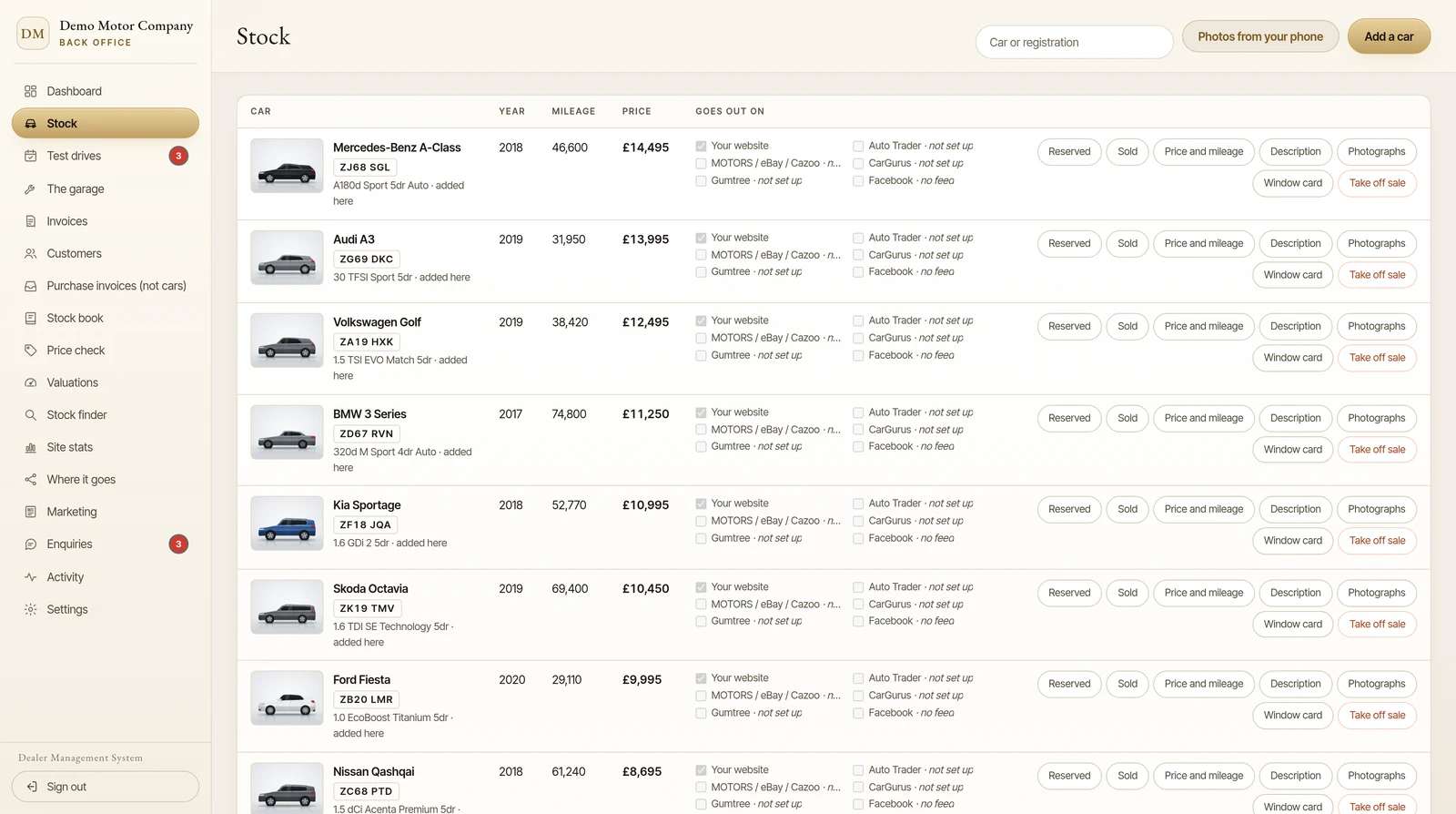
Make a list of the portals you use and ask the supplier to demonstrate those exact connections. Check what is sent: price, photographs, description, mileage and vehicle status. Then change a price or mark the car sold. Does the update reach each connected portal, and how quickly?
Also ask whether any connection needs approval or a separate account. For example, Barton’s Bespoke’s stock-feed details explain that Auto Trader works through your own Auto Trader account, once Auto Trader has approved the connection.
Find out whether you can choose which channels each car appears on. You may not want every vehicle advertised everywhere.
3. What happens when the internet goes down?
If you work from a forecourt with unreliable connectivity, ask to see the offline process rather than accepting a general assurance. Can staff open the desktop app, view stock and continue ordinary work? Which actions are available offline, and which have to wait for a connection?
Then ask what happens when you reconnect. Does the system sync automatically? How does it handle two people changing the same record while offline?
A useful demo should show both sides: continuing to work without a connection, then checking that the changes have synced correctly once it returns.
4. Are invoices and the stock book connected?
Ask the supplier to run through a complete sale. The sales invoice should use the vehicle and customer details already recorded. Then check whether the transaction updates the vehicle’s stock book entry, including the sale details and relevant margin figures.
If you use the VAT margin scheme, inspect the records and invoice output with your accountant before relying on any software. HMRC requires a stock book and purchase and sales invoices for vehicles sold under the scheme. Its official guidance for second-hand vehicles also sets out when the scheme can and cannot be used.
Ask what happens with deposits, part-exchanges, corrections and a sale that is later cancelled. The system should help you keep records in step, but it does not remove your responsibility to check your VAT treatment.
5. Does the website use the same live stock?
A website and a DMS for car dealerships should not create two separate stock lists that staff have to keep aligned. Ask the supplier to change a vehicle’s price in the back office and show you the website update. Then mark it sold and check what happens to its listing.
Look at the vehicle pages, too. Does each car have its own page with clear specifications, photographs and contact options? Ask what is included in the car dealer website design, and whether the pages are built from your live stock records.
Good page structure can help search engines understand a vehicle page, but no supplier can guarantee a particular Google position. Ask what work they carry out and what remains outside their control.
6. Can buyers book a test drive into your diary?
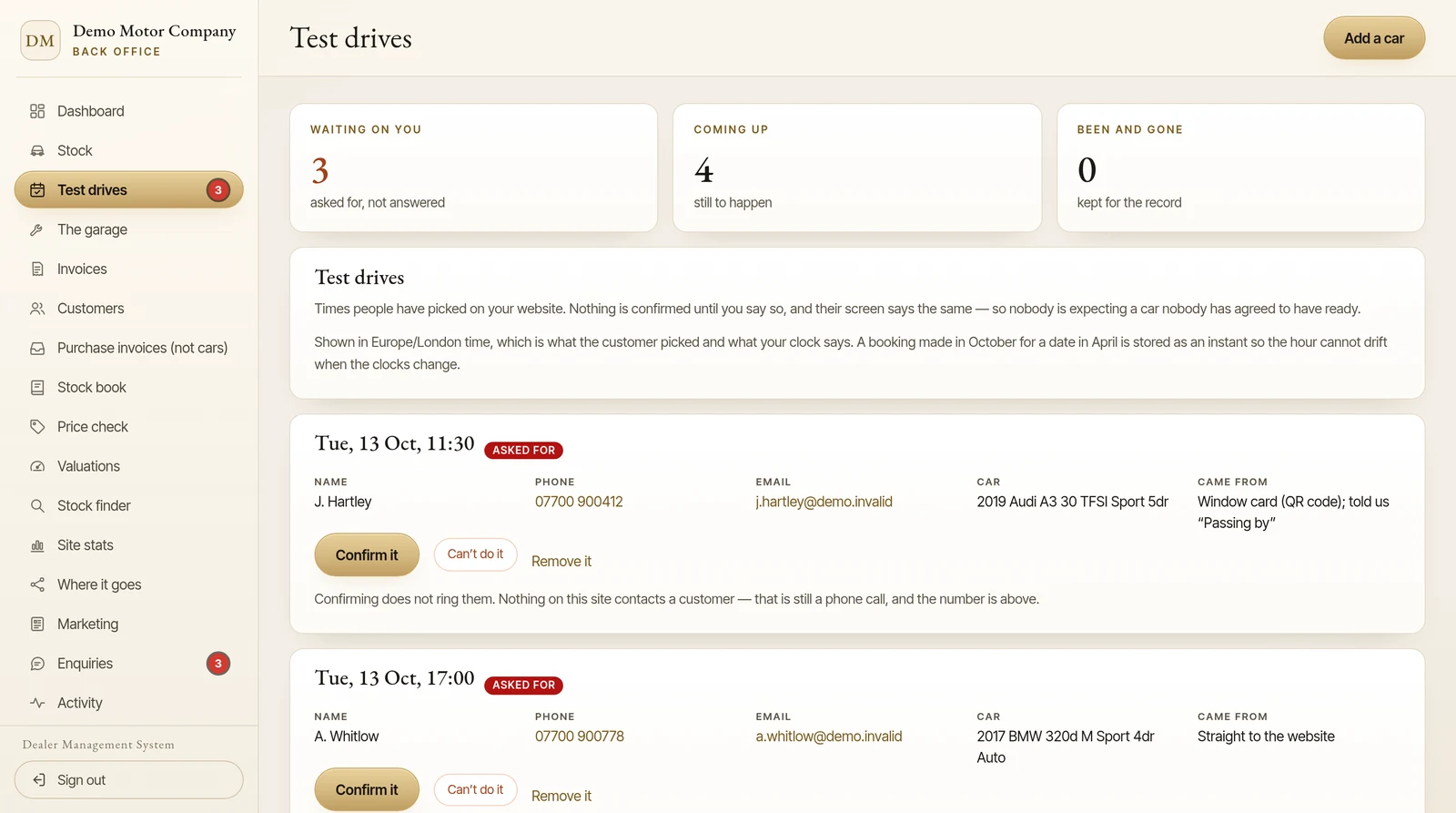
Try the customer journey on a phone. Can a buyer choose a car and request a test drive without calling during your busiest hour? Where does the request appear, and does it include the vehicle and customer details?
Check whether the diary shows the booking alongside your other appointments, and how staff are notified. Ask how the system prevents clashes if a booking comes in while somebody is arranging an appointment by phone.
Online requests should land in the same diary, for you to review and confirm, without copying details from a separate inbox.
7. How do part-exchange leads reach you?
If a buyer can request a part-exchange valuation on your website, find out what information they need to provide and what you receive. Does the enquiry include the vehicle registration, mileage and a way to contact them? Is any displayed figure clearly described as a guide, subject to inspecting the vehicle?
Ask whether you pay for valuations as part of the subscription or separately, and whether you can see what has been used. To see one example, the part-exchange valuations page sets out what a customer is asked and what reaches the dealer.
8. Are vehicle checks and trade valuations available where you work?
Ask whether you can run history checks and trade guide valuations from the stock record, or whether staff must sign into another service and re-enter the registration. Confirm which checks are available, how results are displayed and how each lookup is charged.
Some suppliers include basic vehicle details in the monthly plan but charge separately for history checks or valuations. That can work well, provided the costs and usage are clear. Check whether packs expire, what happens when they run out and whether staff can see what a lookup costs before ordering it.
How ours are bought, and what each pack costs, is on the vehicle checks and valuations page.
9. What support and training will your team get?
Ask what happens between signing up and using the system day to day. Is there help importing your existing stock? Who shows you how to add vehicles, connect portals and raise invoices? How can you contact support, and what response time is offered?
If the system includes AI-written adverts or enquiry replies, ask whether staff can review and edit them before anything goes out.
During the demo, have someone who will use the system regularly try a few ordinary tasks. If they cannot find the diary or correct a vehicle detail, ask the supplier to show how they would do it without taking over the screen.
10. Will the supplier protect your local area?
If your website is a key part of your sales activity, ask whether the supplier also builds websites for nearby direct competitors. Get the answer in writing and clarify how the area is defined, how far the restriction extends and how long it applies.
For example, while you are a Barton’s Bespoke customer, it will not take on another dealer whose forecourt is within 20 miles by road of yours. Check your postcode on the area availability page, and the terms for what happens when an agreement ends.
Also check the practical details before you commit: monthly price, minimum term, costs for optional checks, cancellation notice and how you can export your records.
Finish with a real-world test
A convincing demo should follow a vehicle from entry to sale:
- Add its registration and review the returned details.
- Send it to the channels you use.
- Change its price and check the website listing.
- Receive a test-drive request into the diary.
- Create the sales invoice and check the stock book entry.
- Export the records you would give your accountant.
Compare the answers, not just the feature lists. Ask each supplier to explain what is included, what costs extra and what your staff still need to review.
If you want to see how one dealer management system handles the back office side of that workflow, the online demo is open to explore without signing up. Its cars and customers are invented, and the registration lookup is switched off in it. For pricing, check the current plans and terms.
The pictures in this guide are illustrations, except where a caption says otherwise.