Photograph, check, save, handling supplier invoices without the paperwork pile
Photograph a supplier invoice, check the draft against the paper, then save it: a four-step routine for a garage, and what to check on every line.
In this post
A supplier invoice often arrives when there are already jobs to manage, parts to book in and customers waiting for an update. The details still need to be entered correctly, though: supplier, parts, costs and VAT all matter when you come to check spending and prepare the paperwork.
Photograph it. Check the draft. Save it.
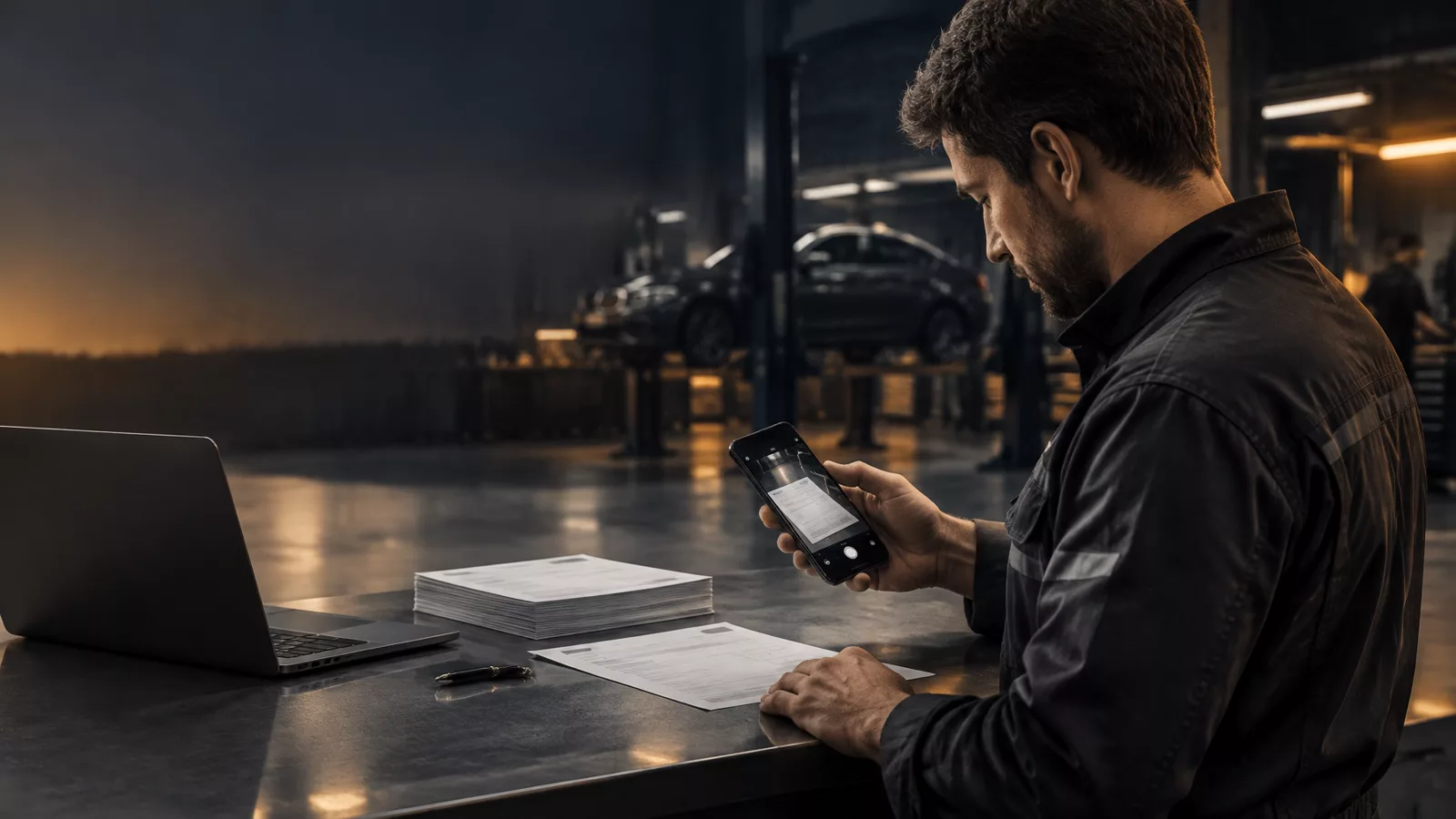
With garage management software that includes invoice capture, a service manager or workshop controller can photograph a paper supplier invoice and have its details entered into a purchase form as a starting point. The software does the first pass; a person checks the result before saving.
Why this small task can take time
The work is not just filing a piece of paper. Someone needs to transfer the invoice details into the right records, check the figures and make sure the costs are accounted for. When invoices build up, the admin can become a separate task to catch up on after the workshop day has finished.
Typing each line manually adds repeated steps. It also gives you another opportunity to mistype a part description, cost or VAT figure. Capturing the invoice from a photograph can reduce that rekeying, while keeping the original document available for comparison.
It is a practical change, not a reason to stop checking. OCR output is a draft for review, not a guarantee that every character has been read perfectly.
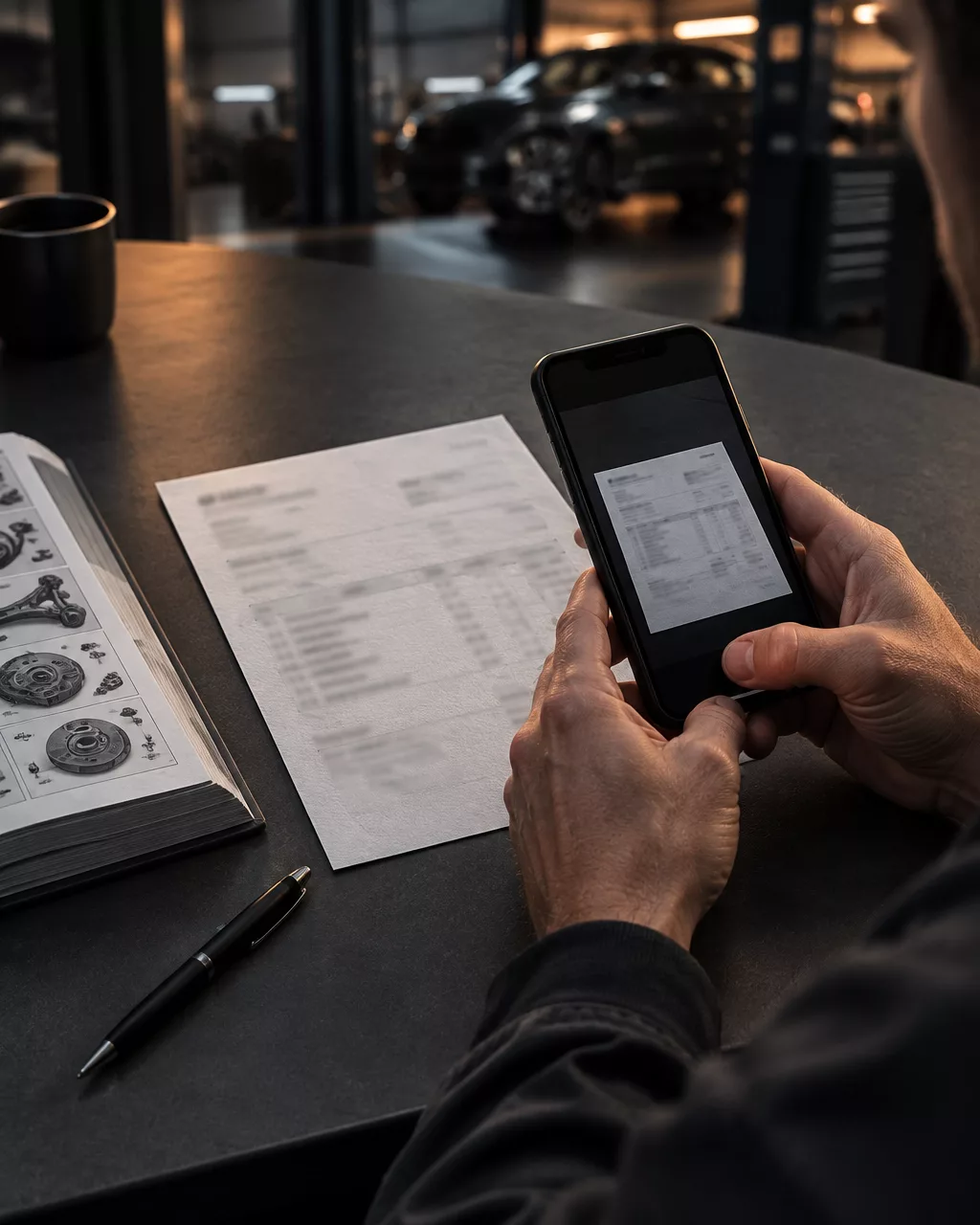
A straightforward four-step workflow
The useful measure is whether the process is easy to follow on an ordinary working day. Keep the paper invoice beside you and work through four steps:
- Photograph. Take a clear photograph of the supplier invoice and add it to the purchase form. Keep the page flat and make sure the print is in focus.
- Review. Check the details filled in by OCR against the paper original. Look at the supplier and invoice information, each line item, the costs and the VAT.
- Correct. Amend anything that is missing or has been read incorrectly. Pay particular attention to similar-looking characters, quantities, decimal points and VAT rates.
- Save. Once the details look right, save the purchase record. If a figure does not match the supplier’s invoice, resolve it before confirming the record.
That is the whole point: the photograph gives the system something to read, but you remain in control of what is saved. You do not have to accept a result just because it has been filled in automatically.
What should you check?
Begin with the information that identifies the document. Is the supplier correct? Does the invoice number match? Then compare the individual lines, rather than checking only the final total.
A quick review should cover:
- Part or item descriptions
- Quantities and unit costs
- Net amounts and VAT rates
- VAT amounts and the invoice total
- Any delivery charge, discount or other line shown on the original
Invoice formats vary. Print can be faint, a page may be creased, and a photograph taken in poor light may be hard to read. A handwritten note or an unusual layout can also need closer attention. If a line is unclear, use the paper original to correct it rather than guessing.
Some systems can check whether the captured lines add up to the invoice total. That is a useful prompt, but it does not prove every detail is right: a mistaken line could still produce a plausible total. Treat any automatic calculation as an extra check, not a substitute for comparing the form with the document.
Keep preparation and repair costs with the car
For a dealer-operated workshop, the supplier invoice may relate to work carried out on a vehicle held in the forecourt’s stock. If the workshop and forecourt use a connected system, the workshop’s own invoice for preparation and repair work can carry its cost back to the vehicle’s stock-book record.
That connection matters when you review a car’s costs and margin. Parts bought for its preparation should not be left as an unconnected figure that someone has to match to the vehicle later. When the cost is recorded against the right car, the paperwork and margin view can reflect the work carried out.
The link depends on the workshop and forecourt being connected and sharing the relevant job information. It does not mean every supplier invoice automatically belongs to a specific vehicle. General workshop supplies, for example, may not relate to one car. The person recording the invoice still needs to decide where each cost belongs.
For independent garages that do not work with a connected forecourt, invoice capture still helps organise purchase records and reduce manual entry. The stock-book link is an additional benefit where that shared workflow applies.
Choose a system that leaves room to check
When comparing garage management software, ask to see the invoice process from beginning to end. A useful demonstration should show the original document alongside the captured details, make it clear how to correct a line and show what happens when you save.
Check that the workflow suits the invoices you receive, including the page formats and types of charge common among your suppliers. Ask how the original photograph is retained, and whether you can review the purchase record later. If your workshop is connected to a forecourt, also ask how preparation and repair costs are assigned to the correct vehicle.
The aim is not to remove judgement from the process. It is to spend less time typing information that is already on the invoice, and more time checking the important details.
Less rekeying. A clear point of review.
A photograph can start the data entry. A careful review makes sure the saved record reflects the supplier’s paper invoice. When costs relate to a specific vehicle, recording them against its stock-book entry can help keep preparation spend and margin paperwork together.
In Barton's Bespoke’s garage management software you photograph a supplier’s invoice on a phone or tablet in the workshop, up to four pages. It is read into the purchase form, the lines are added up and checked against the invoice’s own total, and nothing is saved until you have looked it over and pressed Save. If your workshop is paired with a forecourt, the job invoice you issue for work on one of their cars puts its cost on that car’s line in their stock book.
The workshop demonstration shows the purchase invoice form, though reading a photograph is switched off there. You can also request a 15-minute walkthrough and ask how it would fit the invoices and records your business handles.
The pictures in this guide are illustrations, except where a caption says otherwise.